
Remove Stored Passwords from Safari in Mac OS X
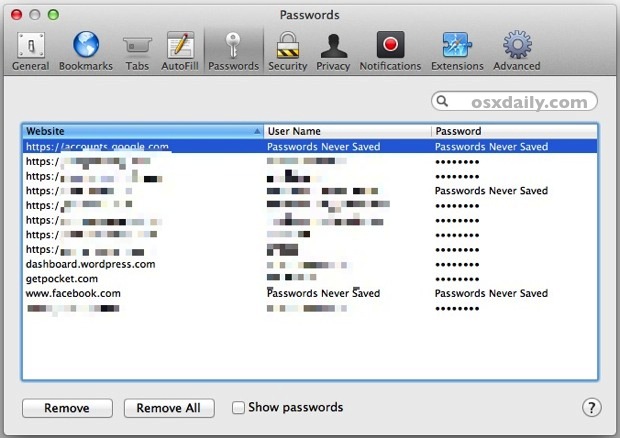
Safari 6 makes it easier than ever to manage and remove passwords stored for the various websites you visit from the Mac. If you want to clear a single or all stored passwords, here’s all you need to do:
- Open Safari’s Preferences from the Safari menu and click on the “Passwords” tab
- Select the website you want to remove the stored password from and then either click the “Remove” button or hit the Delete key
- Alternatively, click “Remove All” or use Shift+Click to select a group of logins and passwords to remove more than a single stored password at a time
For iPhone, iPad, and iPod touches, this can also be done in iOS through clearing Safari Settings.
Tags: Mac OSX Tips


 Previous Article
 Next Article
Subscribe to:
Post Comments (Atom)


Share your views...
0 Respones to "Remove Stored Passwords from Safari in Mac OS X"
Post a Comment